KYDZ Smart Key Programmer
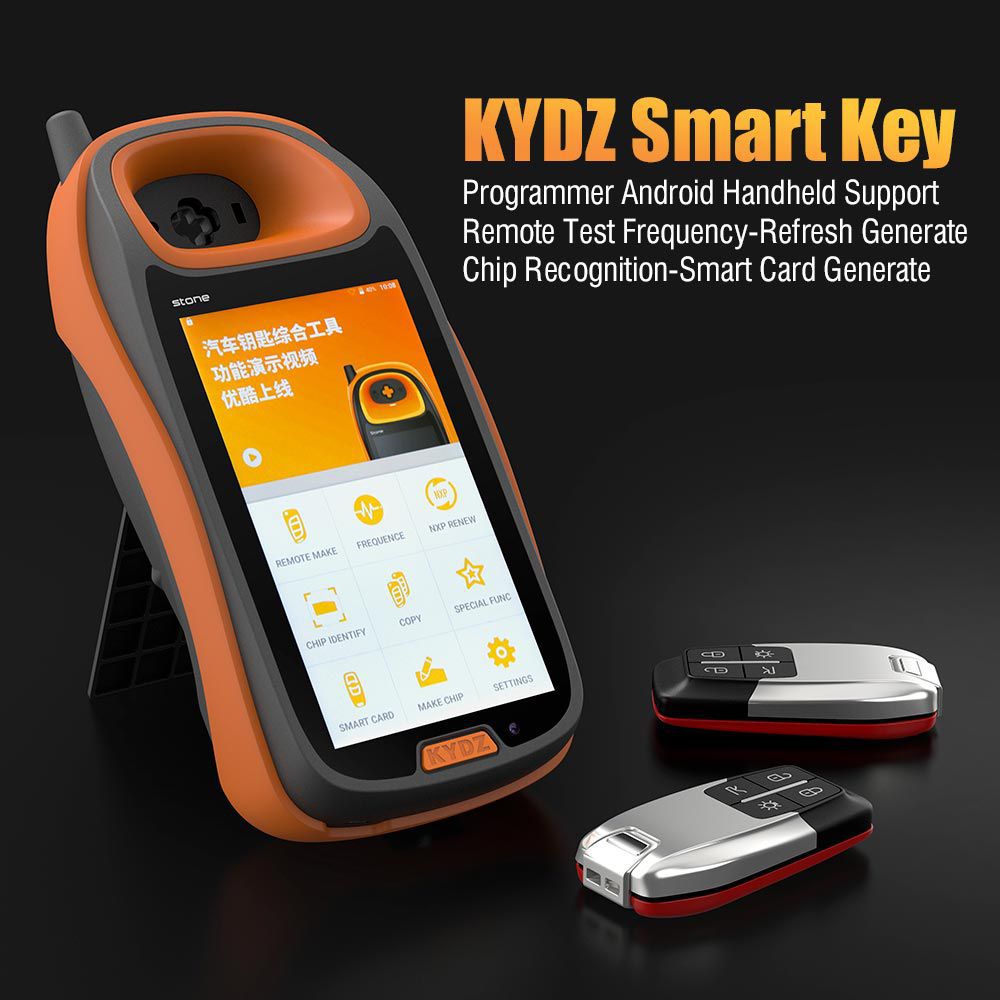
KYDZ Smart Key Programmer Work on AndroidSupports Remote Test Frequency-Refresh Generate Chip Recognition-Smart Card Generate
KYDZ Smart Key Programmer Android Handheld Supports Remote Test Frequency-Refresh Generate Chip Recognition-Smart Card Generate is a one of our KYDZ Smart Key Programmer Tools, you can buy KYDZ Smart Key Programmer Android Handheld Supports Remote Test Frequency-Refresh Generate Chip Recognition-Smart Card Generate from ukobd2.com.
Wholesale Top quality VAS6154, GM Tech2, VCM II For Ford, Handy Baby II Car Key Chip Copier, CDP DS150
images of KYDZ Smart Key Programmer Android Handheld Supports Remote Test Frequency-Refresh Generate Chip Recognition-Smart Card Generate
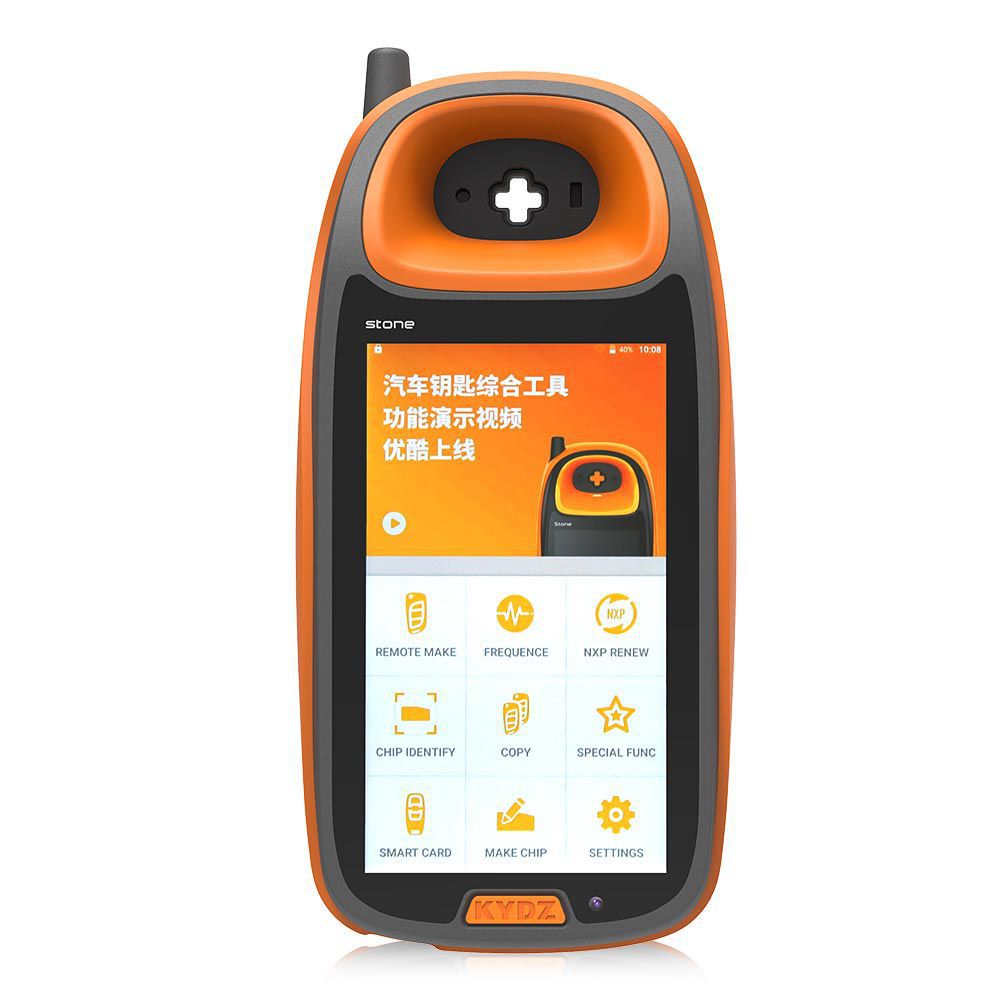
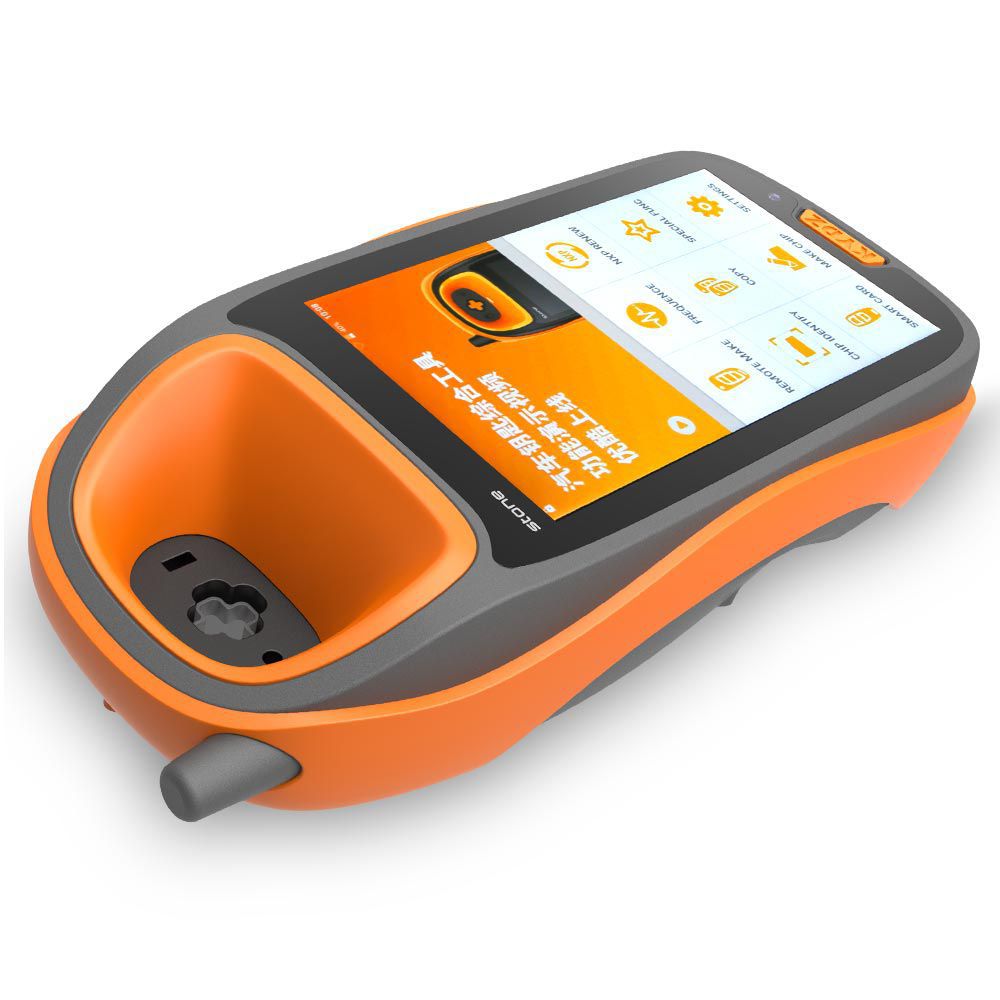
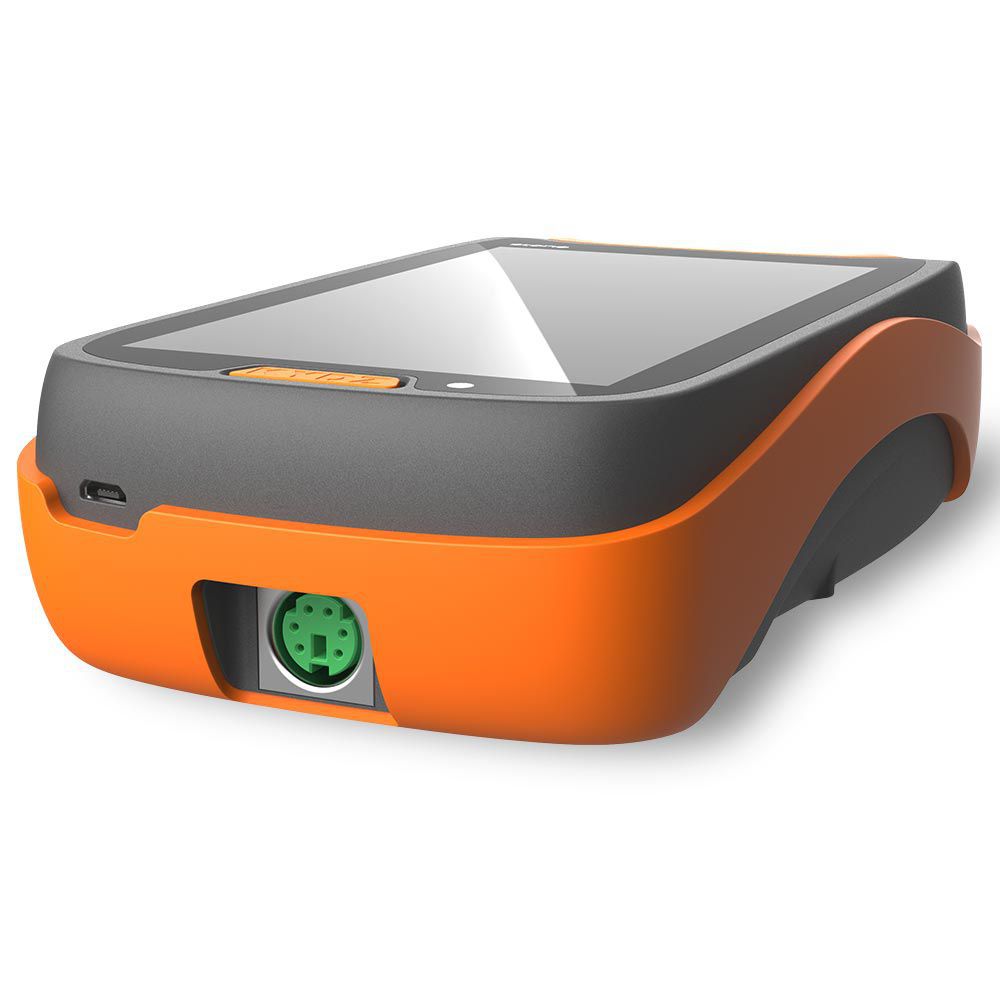
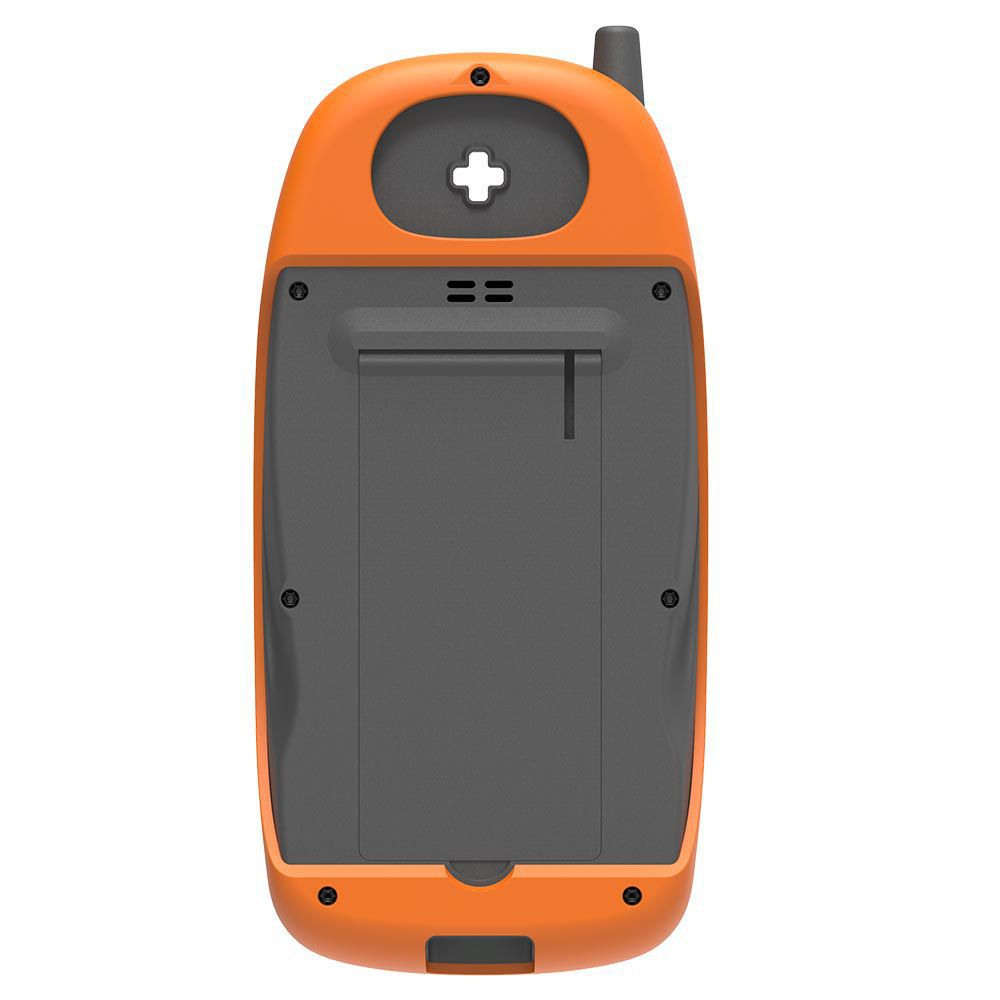

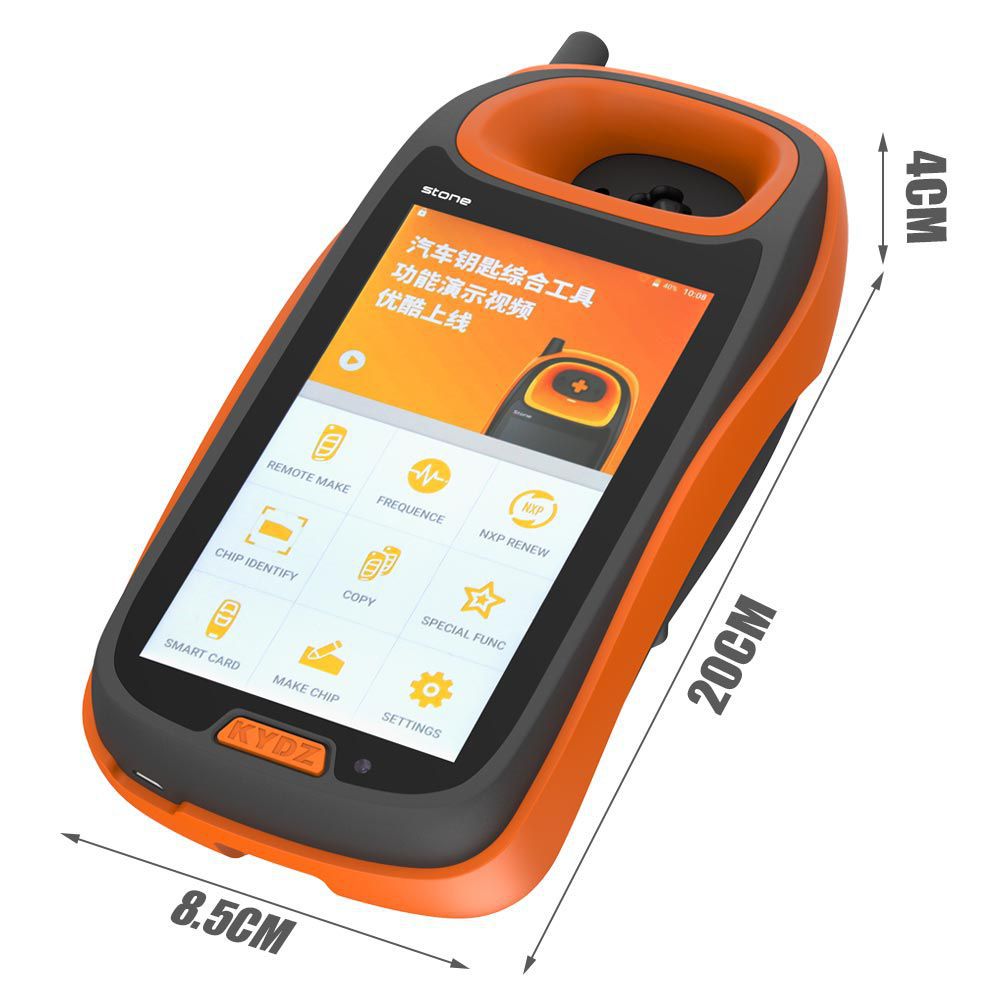
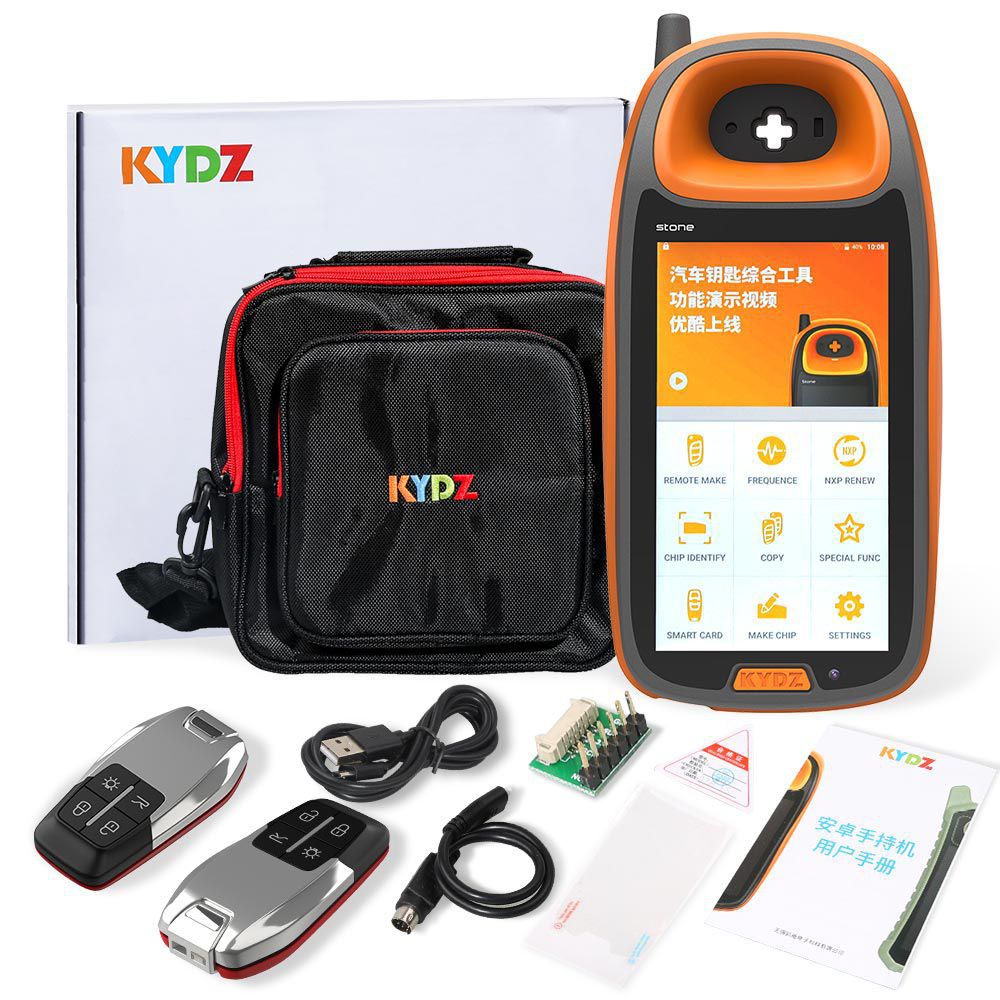
KYDZ Smart Key Programmer Android Handheld
Supports Remote Test, Frequency Detection, Chip Refresh, Generation, Recognition, and Smart Card Creation
Key Functions
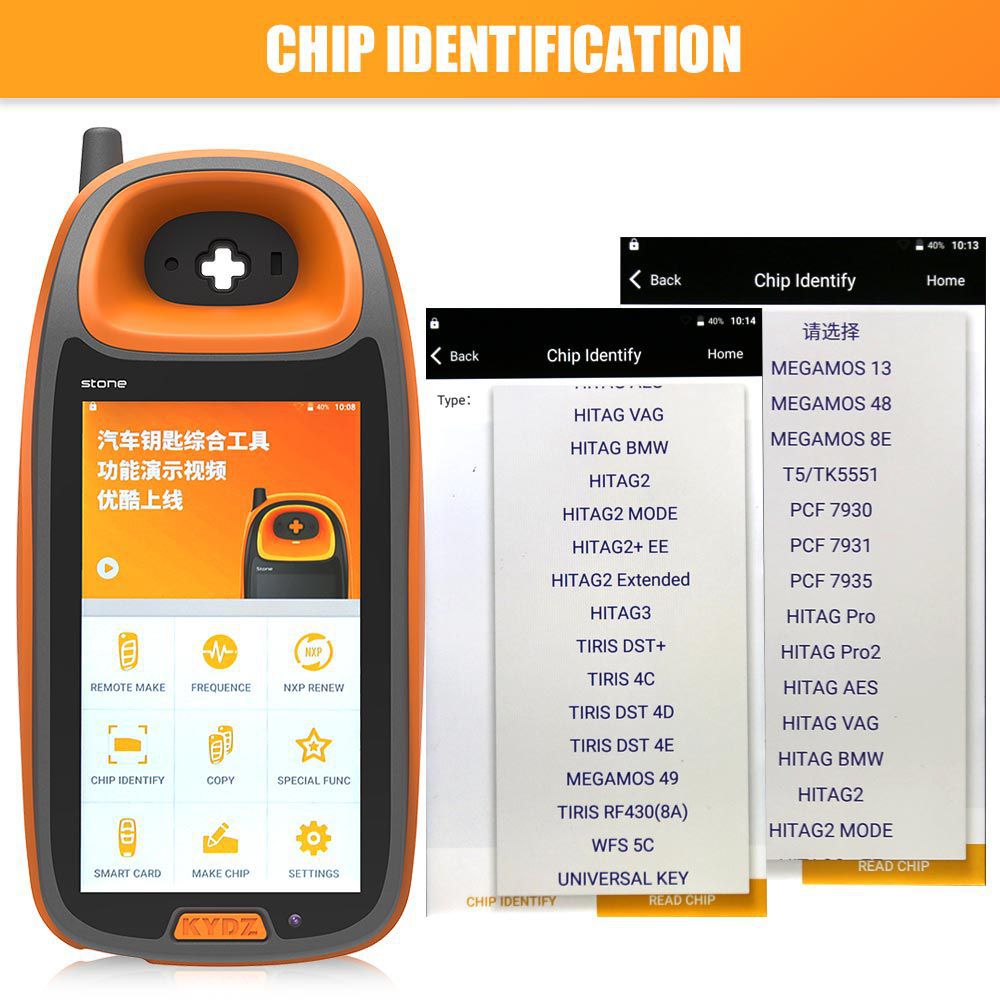
- Chip Identification, Copy, and Generation
- Anti-theft Data Write Key
- Remote Generation
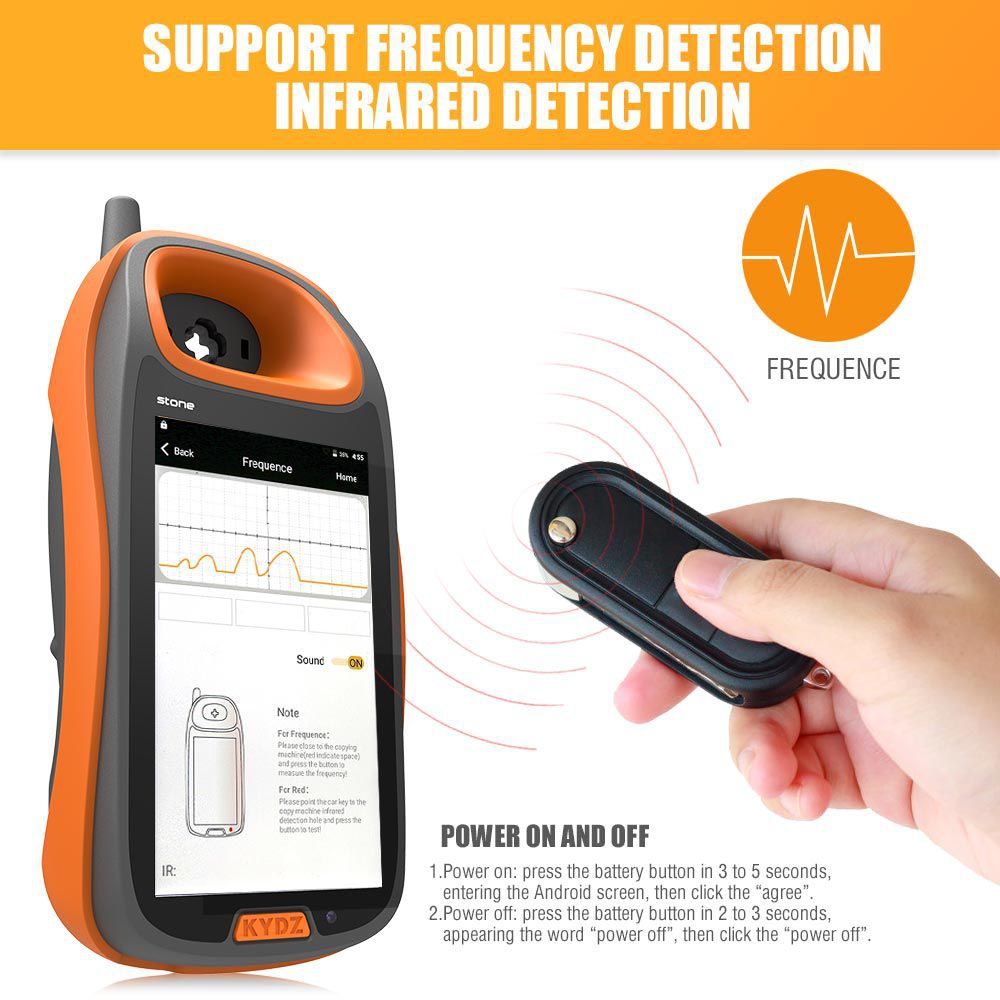
- Supports Frequency Detection and Infrared Detection
- NXP Renew
- Smart Card Generation
Power On and Off Instructions
- Power on: Press the battery button for 3 to 5 seconds to enter the Android screen, then click “agree”.
- Power off: Press the battery button for 2 to 3 seconds until the word “power off” appears, then click “power off”.
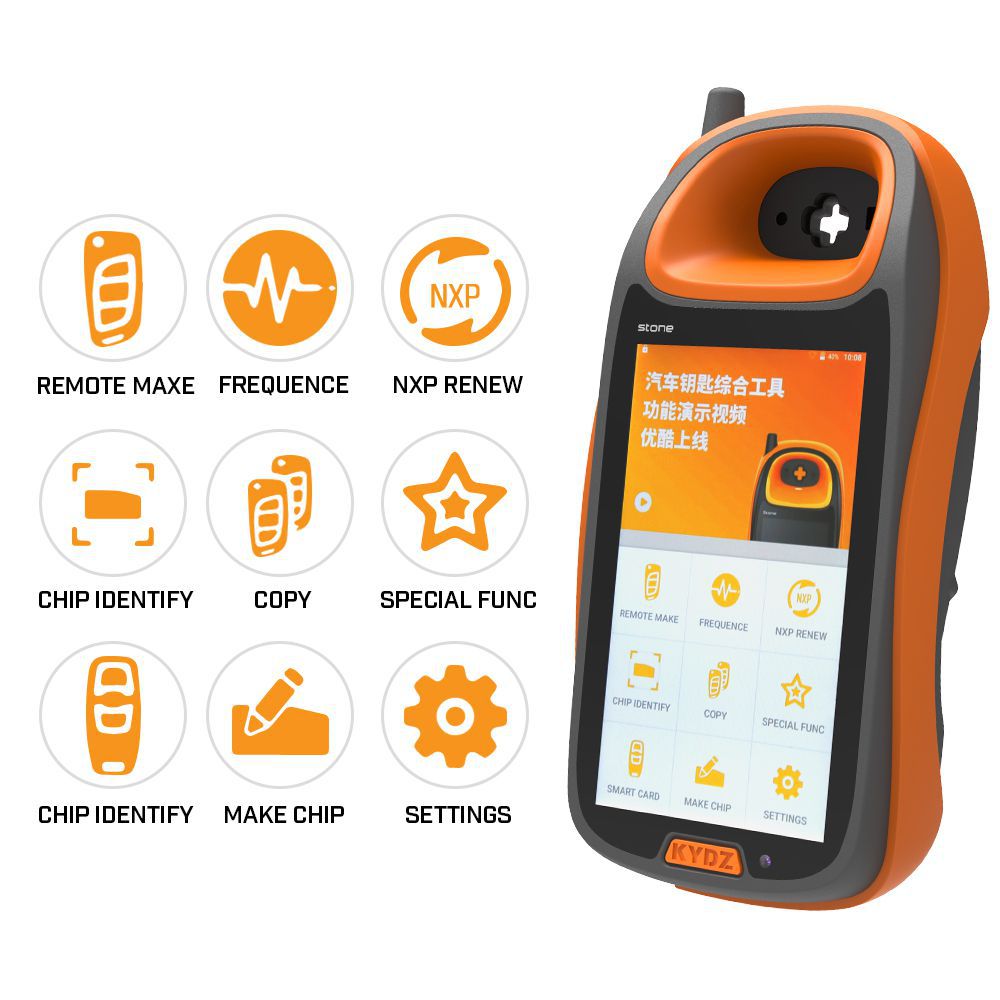
Homepage Description
- Active message showing: Displays new messages from KYDZ.
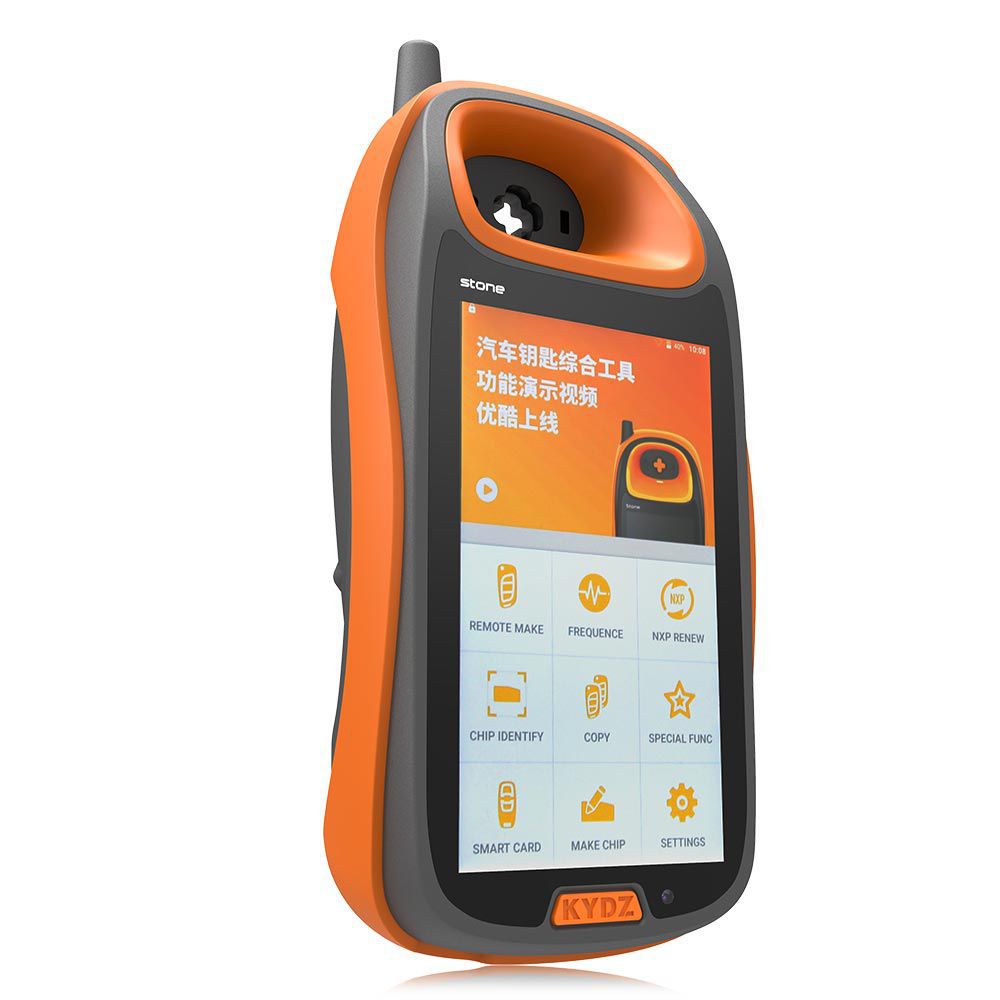
- Remote making: Produces RKE remote keys.
- Detecting frequency and infrared.
- NXP renew: Supports both OEM and aftermarket.
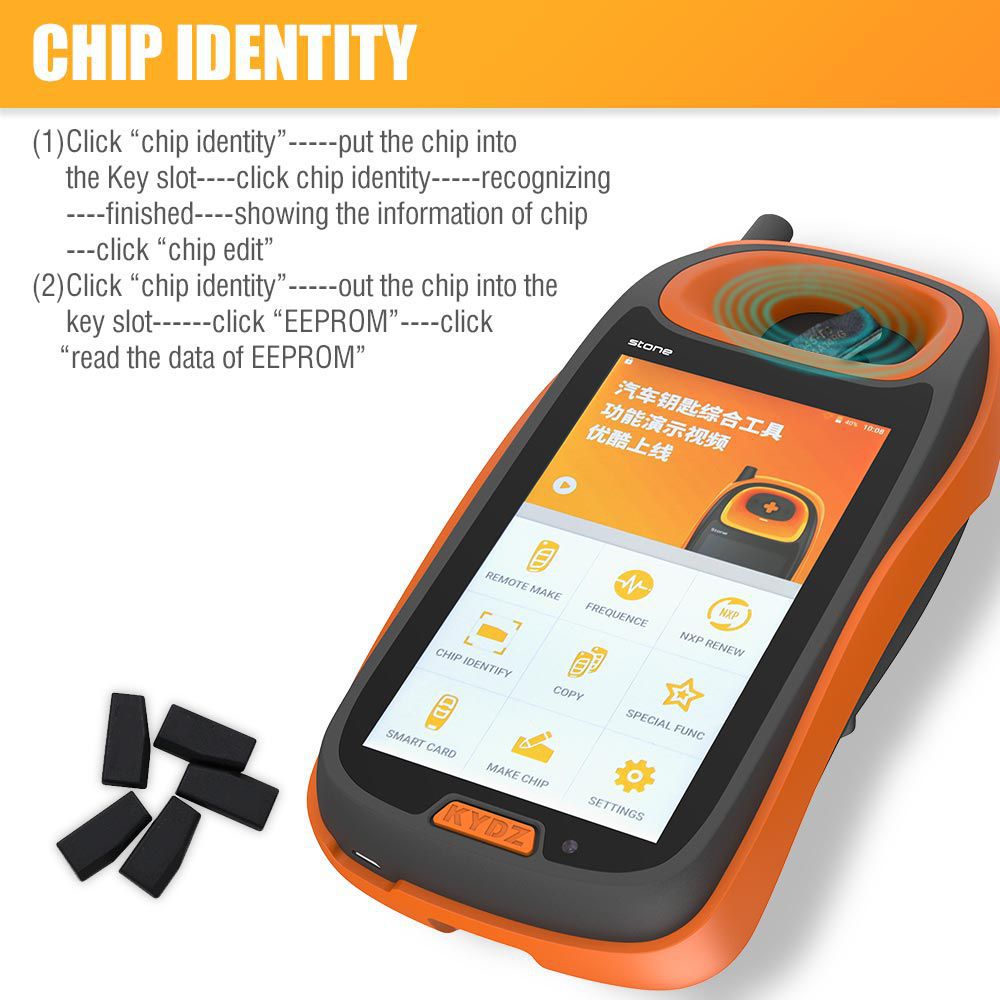
- Chip identify: Recognizes chips, allows editing, and reads EEPROM data.
- Copy: (Still under research and development).
- Special function: (Still under research and development).
- Smart card: Produces various PKE remote keys.
- Making chip: Supports G make, G mass, ID67, ID68, ID70, ID70E, ID33, ID40, ID4, ID42, ID43, ID44, ID45, ID46, ID60, ID61, ID62, ID63, and more.
- Setting: Includes Wi-Fi, display, volume, language settings, and PC mode.
Using Instructions
1. Remote Making
Check if the RKE remote key battery is functional before proceeding. Then: click “Remote Make” → choose the area → select the car type → enter the remote make screen → insert the RKE remote key into the key slot → wait for “Connect the remote key” message → click “Generate” → complete remote making → confirm upon successful read.
2. Detecting Frequency
- Detecting Frequency: Click “Frequency” → place the remote key near the device → press the remote button → view the displayed key information.
- Detecting Infrared: Click “Frequency” → place the remote key near the device → press the remote button → view the displayed information.
3. NXP Renew
Click “NXP Renew” → choose the area → select the car type → enter the screen and connect the circuit → use the PS2 wire to connect the PS2 port → click “Refresh/Update” → read the chip → confirm upon successful read.
4. Chip Identity
- Click “Chip Identity” → insert the chip into the key slot → click “Chip Identify” → wait for recognition to finish → view chip information → click “Chip Edit”.
- Click “Chip Identity” → insert the chip into the key slot → click “EEPROM” → click “Read the Data of EEPROM”.
5. Copy
(Still under research and development).
6. Special Function
(Still under research and development).
7. Smart Card
Ensure the RKE remote key battery is working, then: click “Remote Make” → choose the area → select the car type → enter the remote make screen → read the PKE remote key → adjust until “PKE remote key” is displayed → click “Generate” → confirm.
8. Making Chip
- Car model: Insert the chip into the key slot → click “Make Chip” → select “Car Model” → choose area → select car type → click “Importing Files” → confirm → return to previous screen → click “Generate” → confirm.
- Image generator: Insert the chip into the key slot → click “Make Chip” → click “Image Generator” → select G producing as needed.
- Unlock: Insert the chip into the key slot → click “Make Chip” → click “Unlock” → choose area → select car type → detect battery → detect factory data → reset the chip.
9. Setting
- Wi-Fi setting: Click “Setting” → click “Wi-Fi Setting” → select network → connect.
- Display setting: Click “Setting” → click “Display Setting” → adjust screen brightness.
- Volume setting: Click “Setting” → click “Volume Setting” → adjust volume level.
- Language setting: Click “Setting” → choose English or Chinese.
- PC mode: Connect to a computer.
- About: Displays the device version.
Product Parameters
- Size: 5.0 inch
- Battery: 5000mAh / 3.7V
- Charging: DC 5V / 1A
- Operating Environment: -10°C to 55°C
Package Includes
- 1 set × KYDZ Smart Key Programmer